
Run an npm project with a live preview
Tutorial: copy an npm project into a Pod, install its dependencies with npm, start its server, and preview it on your page and on any device through a Portal.
In this tutorial you build a page that runs an npm project in the browser. The page boots a Pod, copies the project into it, installs its dependencies with npm install, and starts its server. A Portal gives the server a public URL, which the page shows in an iframe and which you can open on any other device.
Before you start

- A BrowserPod Edge key. Portals are part of BrowserPod Edge (free tier available). Get a key at https://console.browserpod.io
 ; see Quickstart. Without a key the server still runs, but there is no preview.
- Node.js and npm on your machine, to run the page’s dev server.
1. Create the project
Scaffold the project from the Web server template, with your key:
npm create browserpod-quickstart@latest -- npm-tutorial -t vite-web -k <your-key>cd npm-tutorialnpm installnpm run devOpen the address the dev server prints, for example http://localhost:5173/. The terminal on the page shows npm install and then the project’s server starting, and the preview loads when the Portal is ready.
2. Two npm projects
The project contains two npm projects, one inside the other:
├── .env # VITE_BP_APIKEY, your key├── index.html # the page├── package.json # the page's dependencies: Vite and BrowserPod├── vite.config.js # the dev server, with the COOP and COEP headers├── public│ └── project # the project that runs in the Pod│ ├── main.js│ └── package.json└── src ├── main.js # boots the Pod and runs the project ├── style.css └── utils.js # copies files into the Pod- The page runs on your machine, served by Vite. It boots the Pod.
- The project in
public/projectruns inside the Pod. Vite serves it as static files, and the page copies them into the Pod.
3. The project that runs in the Pod
The example project is a small web server built with Express, but it stands for any npm project: the steps are the same for yours. Its only dependency is Express:
{ "name": "expressjs-tutorial", "version": "1.0.0", "main": "main.js", "license": "MIT", "dependencies": { "express": "^5.1.0" }}It serves one page on port 3000 (the page’s HTML is left out here):
const express = require("express");const app = express();const port = 3000;
app.get("/", (req, res) => {  res.send(`<!DOCTYPE html> ... `);});
app.listen(port, () => {  console.log(`Example app listening on port ${port}`);});
Nothing in it is specific to BrowserPod: the same project runs with Node.js on any machine.
4. The page that runs the Pod
The dev server
vite.config.js sets the two headers that make the page cross-origin isolated, which BrowserPod needs:
import { defineConfig } from "vite";
export default defineConfig({  server: {    headers: {      "Cross-Origin-Embedder-Policy": "require-corp",      "Cross-Origin-Opener-Policy": "same-origin",    },  },});
The page
index.html has three elements for the script to fill: #url for the Portal’s address, the #portal iframe for the preview, and #console for the terminal:
<div id="url">Waiting for portal...</div><div class="preview-container"> <iframe id="portal"></iframe> <pre id="console"></pre></div><script type="module" src="/src/main.js"></script>Copying files into the Pod
copyFile fetches a file from the page’s server and writes it into the Pod, under the folder you give it. copyFile(pod, "project/main.js", "/home/user") writes /home/user/project/main.js:
export async function copyFile(pod, path, prefix) { const normalizedPrefix = prefix.endsWith("/") ? prefix.slice(0, -1) : prefix; const f = await pod.createFile(`${normalizedPrefix}/${path}`, "binary"); const resp = await fetch(path); const buf = await resp.arrayBuffer(); await f.write(buf); await f.close();}See Write files to the Pod for other ways to get files into a Pod.
Running the project
src/main.js does the work, in five steps:
import { BrowserPod } from "@leaningtech/browserpod";import { copyFile } from "./utils";
// 1. Read the key from .env; an empty value counts as no keyconst apiKey = import.meta.env.VITE_BP_APIKEY?.trim() || undefined;
// Portals need a key, so without one, explain how to enable the previewconst urlDiv = document.getElementById("url");if (!apiKey) {  urlDiv.innerHTML =    "The preview needs an API key. Add VITE_BP_APIKEY to .env and restart the dev server.";}
// 2. Boot the Pod: on the Edge network with a key, or on the fetch network// with opinionatedFetch without one, so that npm install still worksconst pod = apiKey  ? await BrowserPod.boot({ apiKey })  : await BrowserPod.boot({      network: await BrowserPod.createFetchNetwork({        fetch: BrowserPod.opinionatedFetch,      }),    });
const terminal = await pod.createDefaultTerminal(  document.querySelector("#console"));
// 3. When a server in the Pod starts listening, show its Portalconst portalIframe = document.getElementById("portal");pod.onPortal(({ url, port }) => {  urlDiv.innerHTML = `Portal available at <a href="${url}">${url}</a> for local server listening on port ${port}`;  portalIframe.src = url;});
// 4. Copy the project into the Podconst homePath = "/home/user";const projectPath = `${homePath}/project`;await pod.createDirectory(projectPath);await copyFile(pod, "project/main.js", homePath);await copyFile(pod, "project/package.json", homePath);
// 5. Install the dependencies, then start the serverawait pod.run("npm", ["install"], { echo: true, terminal, cwd: projectPath,});await pod.run("node", ["main.js"], { echo: true, terminal, cwd: projectPath,});- Read the key.
VITE_BP_APIKEYcomes from.env. See where to store the API key. - Boot the Pod. With a key,
bootconnects the Pod to BrowserPod Edge. Without one, the Pod uses the browser’sfetch(), withopinionatedFetchso that npm can reach the registry. - Show the Portal.
onPortalcalls back when a program in the Pod listens on a port, with a public URL for it. The page shows the URL and loads it in the iframe. - Copy the project into
/home/user/project. - Run it.
runrunsnpm install, thennode main.js, in the project’s folder, as you would in a terminal.echoprints each command in the terminal before it runs.
5. See it running
When npm install finishes and the server starts, the iframe loads the page the project serves from inside the Pod:
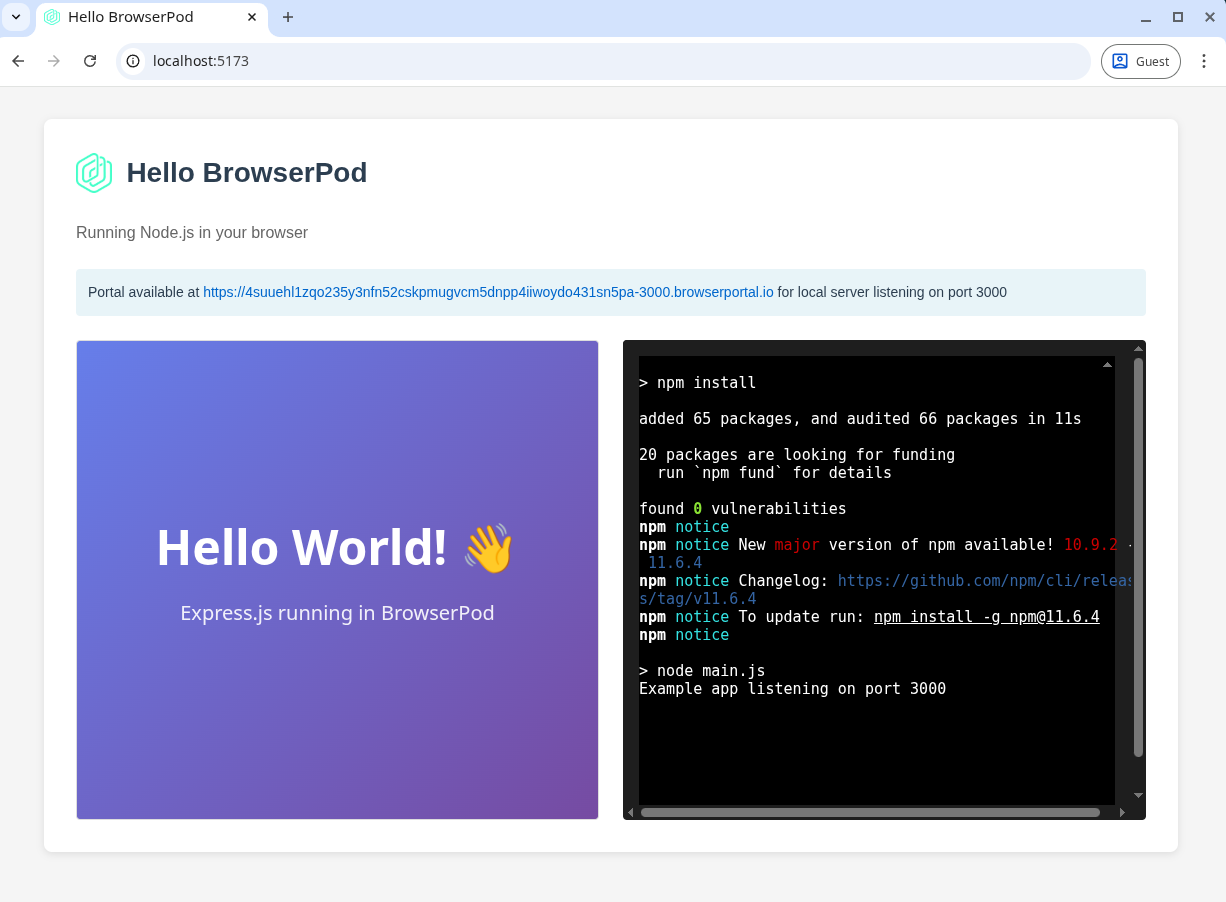
The Portal URL is public: open it on your phone, or send it to someone else, while the page is open.
Next steps
- Set up a Portal covers Portals in more detail.
- Keep the project between visits by booting with a
storageKey. - See Networking for what the Pod can reach with and without Edge.